Make your first sale and print a receipt
In short: Open POS, add the device, choose how the customer pays and complete the sale.
- 1
Open POS
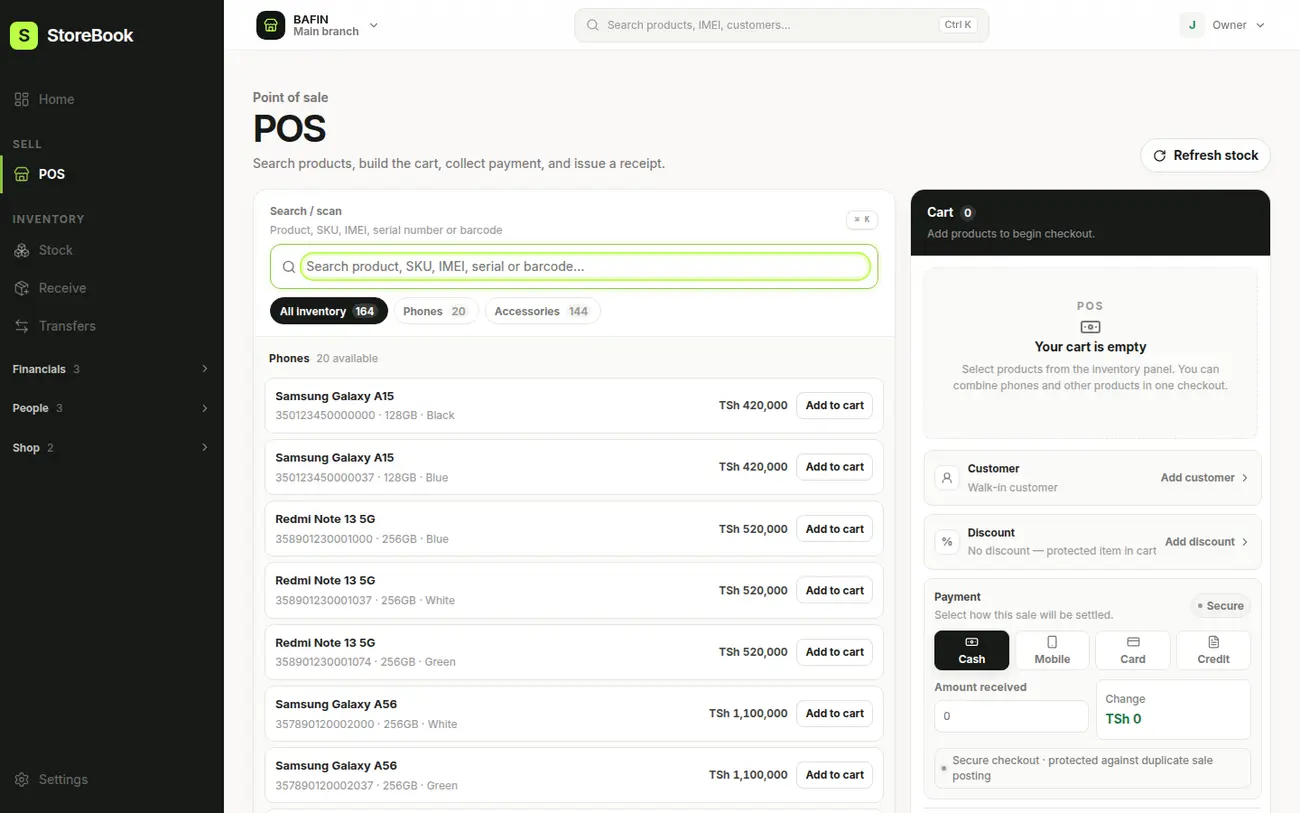
In the menu, open POS. On a phone, tap Sell.
- 2
Add what the customer is buying
Search by name, or scan or type the IMEI or barcode. Tap a product to add it to the sale. You can mix phones and accessories.
- 3
Review the sale
Open Review sale to check the items and the total. Add the customer’s name and phone if you want them on the receipt.
- 4
Choose the payment
Pick Cash, Mobile (mobile money) or Credit. For cash, enter the amount received and StoreBook shows the change.
- 5
Complete and give the receipt
Complete the sale. Then print the receipt, or send it on WhatsApp if you switched that add-on on.
Tip
Every sale takes the exact device out of stock by its IMEI, so you always know what is left.